


Orca Slicer fuzzy skin, explained
Fuzzy skin jitters the outer wall of a print in and out by a tiny amount, giving the surface a deliberately rough, matte texture instead of smooth layer lines. It is used to add grip, create a fabric-like or stone-like finish, and hide small surface flaws or visible layers. The trade is that it adds a little print time and softens fine dimensional accuracy. So it belongs on surfaces you want to feel textured, not on parts that must fit precisely. Orca Slicer keeps it to a few settings in the Others tab.
You will find it in the Others tab, in the Fuzzy skin section.
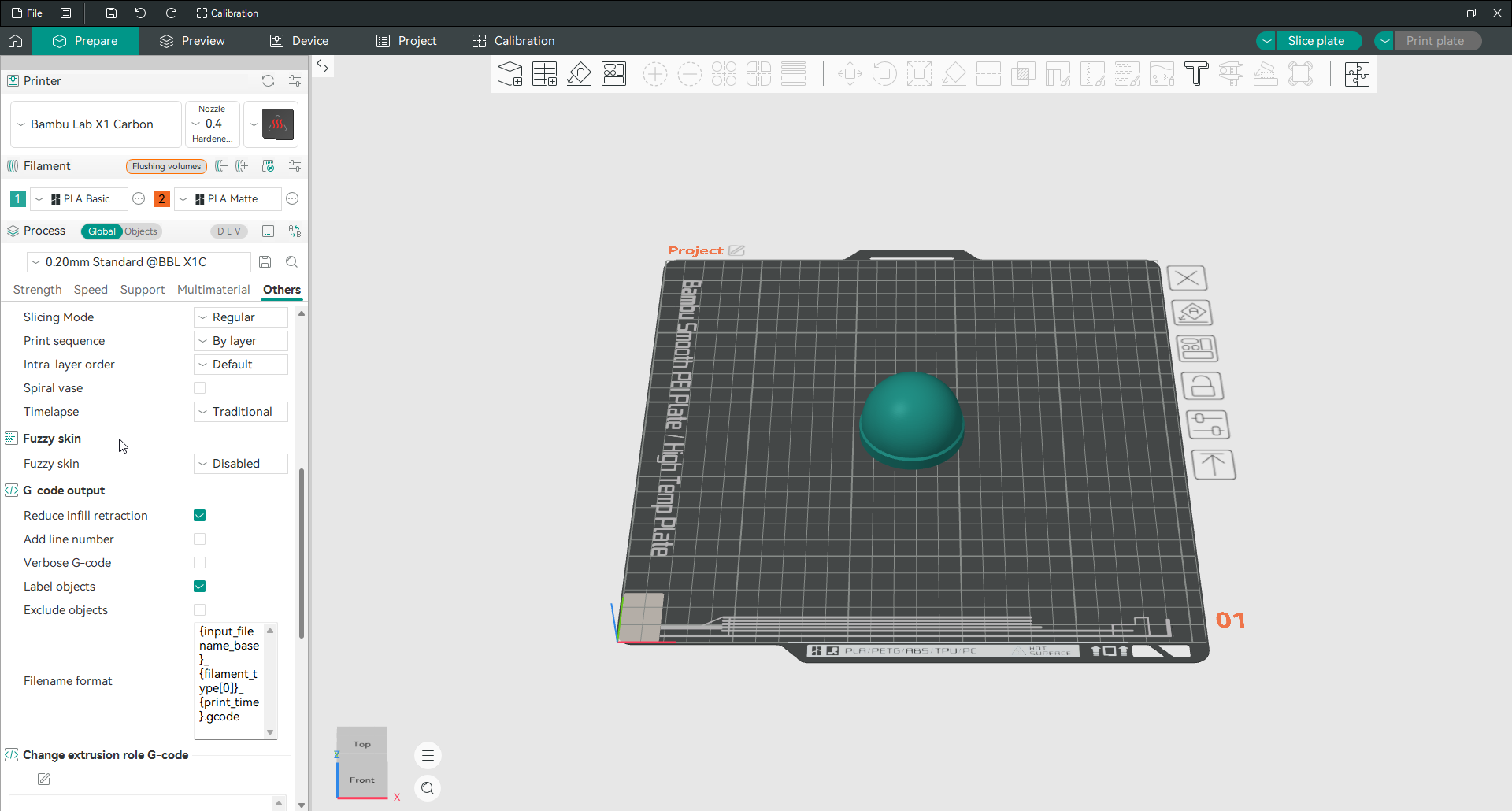

Where the texture goes
The first fuzzy skin setting chooses which surfaces get the effect. You can apply it to the outer contour only, which textures the visible outside while keeping inner walls smooth. You can also apply it to holes and cutouts only, for grip on the inside, or to both. There is also a painted option. You brush the effect onto just the areas you want, so you can texture a grip zone and leave the rest clean.
Point distance and thickness
Two settings control how the texture feels. Point distance sets how often the wall is nudged, roughly the spacing between bumps. A smaller value gives a finer, denser grain, and a larger value a coarser one. Thickness sets how far the wall moves in and out, which is the depth of the texture. Keep it below or near your outer wall’s line width so the wall does not tear itself apart. Around 0.8 mm point distance and 0.3 mm thickness is a common starting point for a clear but controlled texture.
Generator and noise
The generator mode decides how the jitter is created, either by displacing the wall’s path or by modulating the flow. The displacement method is the usual choice. The noise type sets the pattern of randomness behind the texture. It ranges from a plain classic random look to more organic patterns, which changes the character of the finish. These are worth experimenting with once the basic point distance and thickness give you a texture you like.
Frequently asked questions
What does fuzzy skin do in Orca Slicer?
It gives the surface a rough, matte texture by nudging the outer wall in and out as it prints, instead of leaving smooth walls. People use it to add grip, create a decorative finish, and hide layer lines or small blemishes. It adds a little time and reduces fine accuracy, so it suits textured surfaces rather than precise parts.
What are good fuzzy skin settings?
A point distance around 0.8 mm and a thickness around 0.3 mm give a clear but controlled texture for most prints. Keep the thickness below or near your outer wall’s line width, then adjust point distance smaller for a finer grain or larger for a coarser one until it looks right.
Does fuzzy skin affect print accuracy?
Yes, a little. Because it moves the outer wall in and out, the exact outside dimensions become slightly less precise, and the surface is rougher by design. That is fine for decorative or grippy surfaces, but avoid it on faces that have to fit tightly against another part.
Can I apply fuzzy skin to only part of a model?
Yes. The painted option lets you brush the effect onto just the areas you choose, such as a handle or grip zone, while leaving the rest of the model smooth. You can also limit it to the outer contour only, or to interior holes only, without painting.