


Orca Slicer overhang settings, explained
An overhang is any part of a print that sticks out over open air with nothing printed underneath it. Those layers cool and set in mid-air instead of resting on a solid base. If the settings are not right, they can sag, curl or droop. Orca Slicer has a small group of settings that control how these unsupported edges print. Used together, they let many overhangs print cleanly with no support material at all.
You will find them in the Quality tab, in a section called Overhangs. Switch the mode selector at the top right to Advanced or Expert to see all of them. Most sit in Advanced mode and stay hidden in the simpler views. There are four main settings here, plus a few sub-settings, and each one changes how the printer treats the parts of your model that hang into the air.
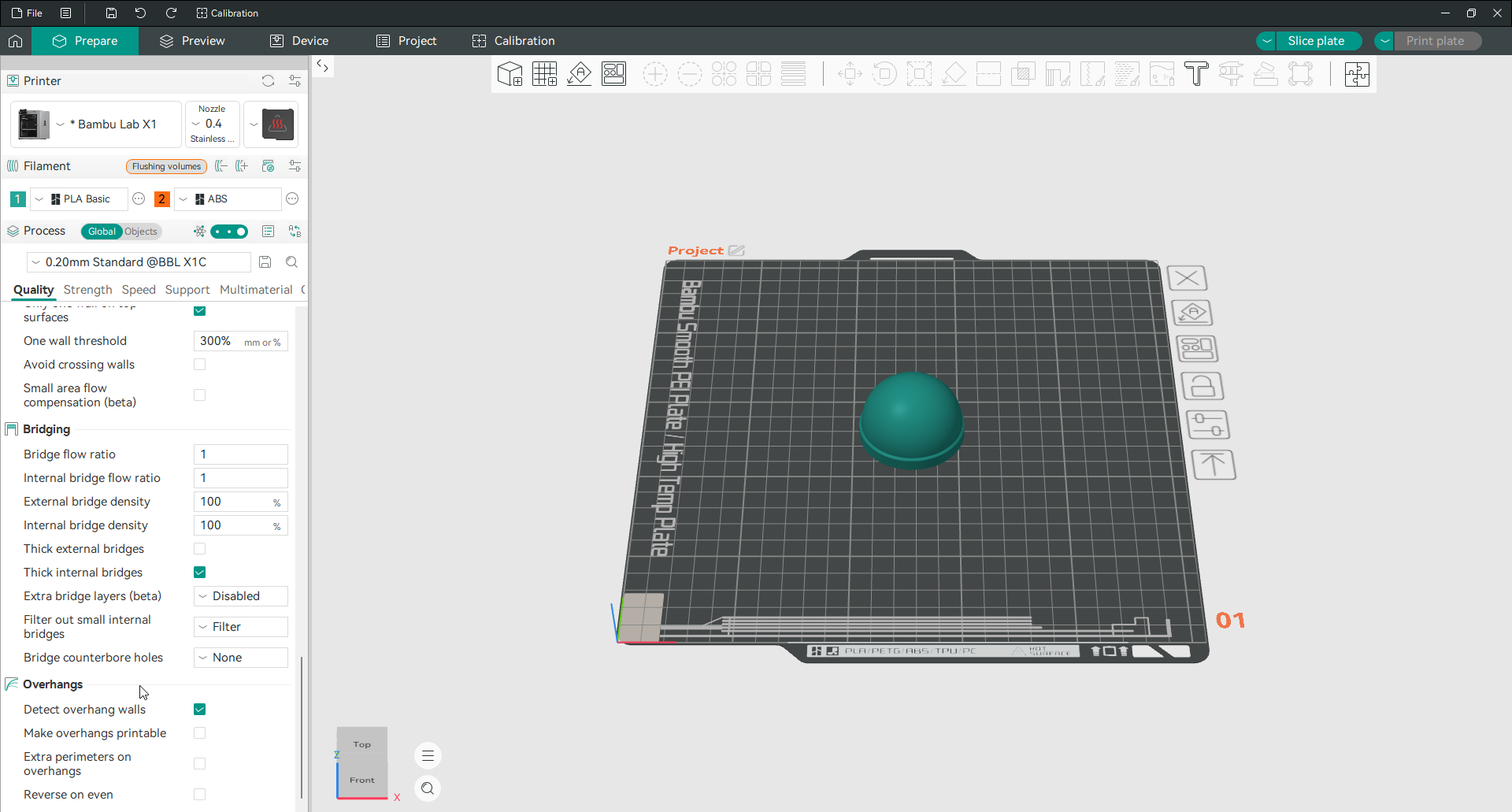
Detect overhang wall
Detect overhang wall lets Orca Slicer measure how much of each wall line hangs over open air and print those sections differently from normal walls. It works out the overhang percentage of each line relative to its width, based on how much solid material sits beneath it. A fully supported line prints as a normal wall. A line with no support under it counts as an overhang. Once a line reaches 100 percent overhang, the slicer switches to its bridge settings for that section, using the separate bridge flow ratio, speed and cooling to hold the shape across the gap.
This detection is also the base for the reverse tools further down. The Reverse threshold field only appears when Detect overhang wall is on. It is enabled by default, and leaving it on is the right choice for most prints.
Make overhang printable
Make overhang printable changes the shape of the model slightly so steep overhangs can print without support material. When it is on, Orca Slicer adds cone-shaped material under overhangs that are steeper than the limit you set. That gives those sections something to build on. The adjustments are meant to be minor, but they do alter the geometry. It suits functional parts more than pieces where the exact shape has to stay true. It is off by default.

Maximum angle
Maximum angle sets how steep an overhang can be before Orca Slicer reshapes it. The scale runs opposite to what many people expect. A value of 90 degrees leaves the model completely untouched and allows any overhang. A value of 0 degrees replaces every overhang with cone-shaped material. So a lower number fixes more of the model, and a higher number fixes less. A value between 45 and 60 degrees works well for most printers and models. Start there when small shape changes are acceptable.
Hole area
Hole area sets the largest hole in the base of your model that will be filled when overhangs are reshaped. It only does anything while Make overhang printable is on. A value of 0 fills every hole in the model base with cone-shaped material. A larger value leaves the bigger holes open and fills only the smaller ones. Raise it when base holes are meant to stay open. Lower it toward 0 when you want those openings closed for a more solid foot.
Extra perimeters on overhangs
Extra perimeters on overhangs adds extra wall loops over steep overhangs and over areas where a bridge has nothing to anchor to. The extra passes give the outer wall more material to rest against as it reaches into open air. That reduces drooping and helps the edge keep its shape. It also improves layer adhesion in these weak spots and leaves a cleaner finish on the surface. The setting is off by default. Turn it on when a model has wide unsupported sections that keep coming out rough.
Reverse on even
Reverse on even flips the direction the printer lays down perimeters on every even-numbered layer. One layer prints one way, and the next prints the opposite way. Alternating like this improves steep overhangs, because the slightly squished filament from one layer leans into and supports the next. It also spreads internal stresses in alternating directions, which lowers the chance of warping. And it helps with floating regions printed over supports.
The effect is strongest on materials that like to warp or stretch, such as ABS, ASA, TPU and Silk PLA. For the best result, set Reverse threshold to 0 so every wall alternates on even layers rather than only the steepest ones. The trade-off is a visible texture on the outer wall from the changing direction, so it is best kept for prints that clearly benefit.
Reverse on even is only available when the slicer is choosing wall directions automatically and Spiral vase mode is turned off.

Reverse internal only
Reverse internal only limits the direction flipping to the inner walls. The outer wall keeps printing the same way on every layer. You still get most of the benefit, stronger overhangs and less warping from the inner walls alternating, while the outer surface stays smooth because it is never reversed. Turn it on when you like what Reverse on even does for strength but do not want the texture it leaves on the outside. It works with the inner and outer wall order.
Reverse threshold
Reverse threshold tells OrcaSlicer which overhangs are steep enough to be worth reversing. You can set it three ways. A value of 0 turns the threshold off, so every wall reverses on even layers. A value in millimeters reverses direction once an overhang reaches that distance. A percentage reverses only when an overhang passes that share of the wall width. With a threshold set, only the walls above the limit make the reversal texture and the rest print normally. That can leave an uneven surface that some people find worse than reversing everything, so use it only when you are sure some walls do not need it.
This field only shows up when Detect overhang wall is on and Reverse internal only is off. If either is not the case, the setting is hidden.
Other settings that work with overhangs
A few settings outside this section also shape how overhangs come out. Overhang speed, in the Speed tab, slows the nozzle over unsupported areas so each layer has more time to cool before the next one lands. The bridge settings decide how the slicer prints fully unsupported spans once Detect overhang wall flags them, and you can tune those on the bridging page. Wall printing order matters too. The Inner and Outer order prints the inner wall first, so the outer overhanging wall has a neighbour to lean on, which is covered on the walls and surfaces page. If overhangs still sag after adjusting these, the troubleshooting guide walks through the usual causes.
Frequently asked questions
What angle counts as an overhang?
Any wall that leans out past vertical is technically an overhang, but most printers only start to struggle past about 45 degrees from vertical. Below that, cooling and normal walls usually cope on their own. Steeper than that is where overhang settings, slower speeds or supports begin to matter. That is why 45 degrees is the common rule of thumb for when a part needs extra help.
How do I print overhangs without supports?
Turn on Detect overhang wall so the slicer prints unsupported edges more carefully. Add Extra perimeters on overhangs for wide sections, and let Overhang speed slow the nozzle over those areas. For steep angles you can also enable Make overhang printable, which reshapes the model so it prints support-free, or Reverse on even to strengthen the edges. Good part cooling and a well calibrated flow rate make a bigger difference here than any single toggle.
Why do my overhangs droop or curl?
Drooping usually means the filament is not cooling fast enough before the next layer lands, or the nozzle is moving too quickly over the unsupported area. Increase the part cooling fan, slow the print over overhangs, and make sure Detect overhang wall is on. Curling on materials like ABS and ASA is more about warping, where Reverse on even and steadier temperature control help the most.
What is the best Maximum angle setting?
For most printers and models, a value between 45 and 60 degrees works well. Keep in mind the scale is reversed, so 90 degrees changes nothing and 0 degrees reshapes every overhang. Numbers in the 45 to 60 range reshape only the steeper overhangs and leave gentle ones alone. Start at the higher end if you want the smallest possible changes to your model’s shape.
Why is Reverse threshold greyed out or missing?
Reverse threshold only appears when Detect overhang wall is on and Reverse internal only is off. If you cannot see the field, check those two settings first. Spiral vase mode and a manual wall direction also switch off the reverse features as a whole.
Should I leave Detect overhang wall on?
Yes, in most cases. It is on by default, it lets the slicer treat unsupported edges more carefully, and other overhang tools rely on it. The one time to test turning it off is if you notice odd-looking walls on a specific model, since a few users have found it changes the look of certain angled surfaces. If a print comes out wrong around its overhangs, switching this off is a quick thing to check.