Overhangs
An overhang is a part of your 3D print that extends outward and is printed without any support underneath. These sections can be tricky because they rely on the filament’s cooling and precision rather than a physical base. Orca Slicer helps you manage all the important settings to print overhangs cleanly and accurately.
When printing overhangs, the key factors that control quality are the cooling rate, layer height, and print speed. Adjusting these parameters helps you avoid drooping edges and ensures the layers stay firm and well-shaped.
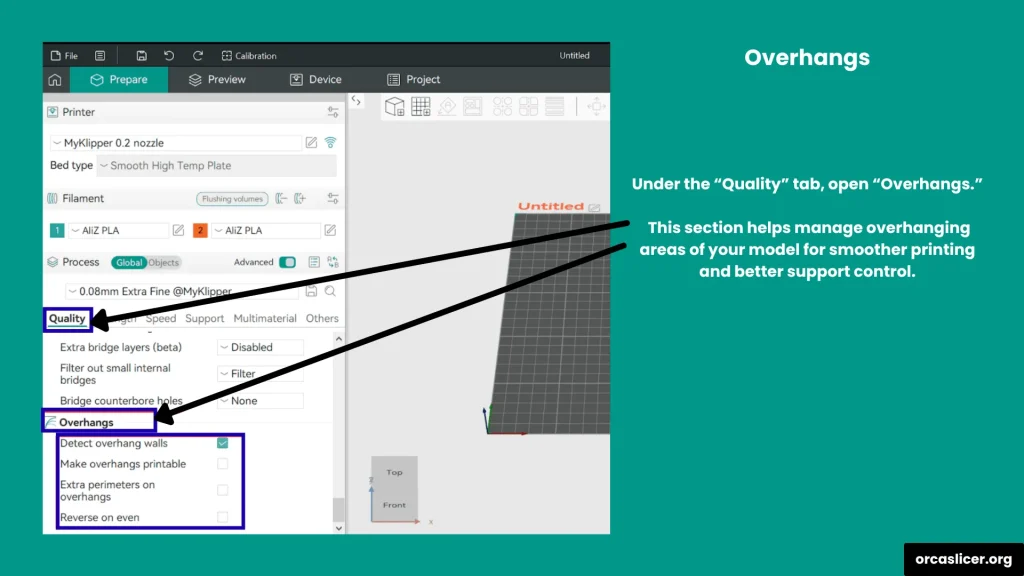
To access these options, open Orca Slicer, go to the Quality Tab, and scroll down to find the Overhangs section. Here, you will find four different settings that allow you to control the appearance, strength, and stability of your overhangs.
Let’s look at each setting one by one and see how it affects your print quality.
Detect Overhang Wall
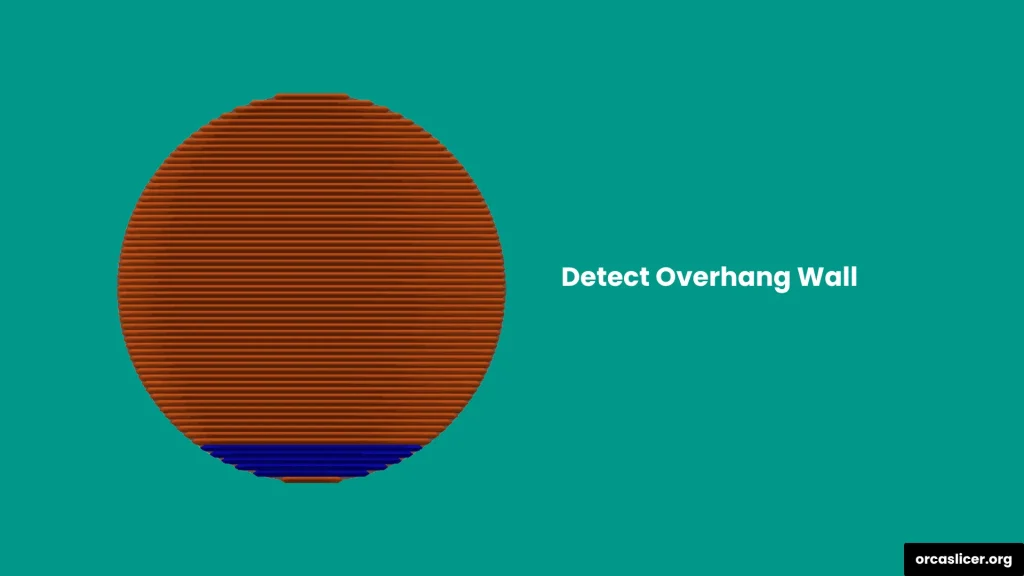
The Detect Overhang Wall setting in Orca Slicer helps the printer recognize which parts of your 3D model are printed partially or completely in the air without any support underneath. It does this by analyzing the line width and how much support each part has below it.
If a line is fully supported, the slicer treats it as a normal wall. If it has no support at all, it is detected as an overhang. When a 100 percent overhang is found, the slicer automatically switches to bridge mode and applies bridge-related settings such as reduced material flow, lower print speed, and stronger cooling to maintain quality across gaps.
This feature ensures your printer adjusts its behavior automatically for unsupported parts, improving both accuracy and print strength.
Make Overhang Printable
When your 3D model includes steep or complex overhangs, Orca Slicer offers the Make Overhang Printable option. Enabling this feature allows the slicer to make small geometric adjustments to difficult overhangs so your printer can handle them more precisely and with better stability.
By turning this option on, you let the slicer slightly reshape overhang angles where needed. These adjustments are minor but help your printer maintain strong layer adhesion and cleaner results without affecting the overall design.
Maximum Angle
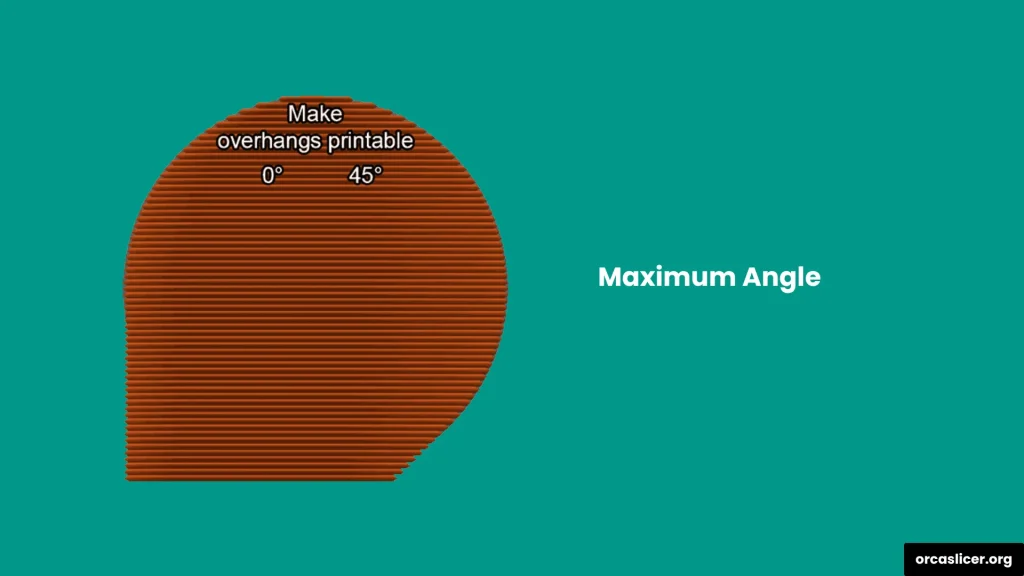
The Maximum Angle setting lets you define the limit for steep overhangs that can be modified automatically. The angle is measured from the horizontal base (0 degrees), and any overhang steeper than your selected angle will be adjusted before printing.
A value between 40 and 60 degrees usually works best. This setting is ideal when small shape changes are acceptable and do not affect your model’s overall geometry.
Hole Area
The Hole Area setting controls how the slicer manages holes in the base layers of your model. It lets you set the maximum size of holes that the slicer will fill with material.
If you choose a larger value, only smaller holes will be filled using conical infill material. If you set the value to zero, all holes in the base layer will be completely filled.
This setting helps maintain base stability and ensures that the first few layers of your print are strong and well-supported.
Extra Perimeters on Overhangs
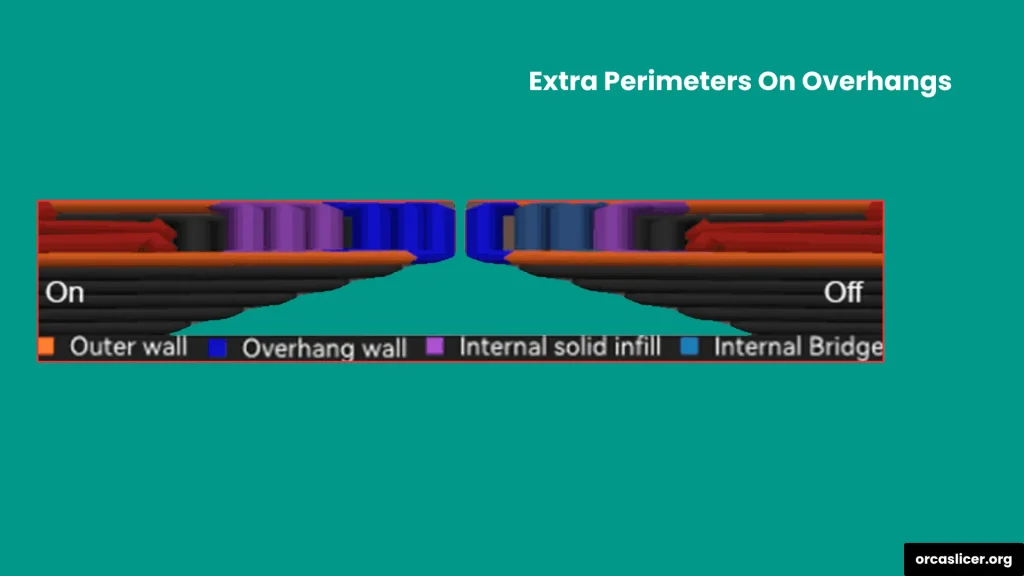
The Extra Perimeters on Overhangs setting helps improve the quality of steep or unsupported parts of your 3D model. When this option is enabled, the slicer automatically adds extra outer walls to the areas where the overhangs are too wide or too steep.
These additional perimeters make the printed overhangs cleaner, smoother, and more stable. They also improve layer adhesion and give the filament better support as it prints across open areas.
By reinforcing these weak hanging sections, you reduce the chances of drooping or deformation and achieve stronger, more reliable prints with a finer surface finish.
Reverse on Even
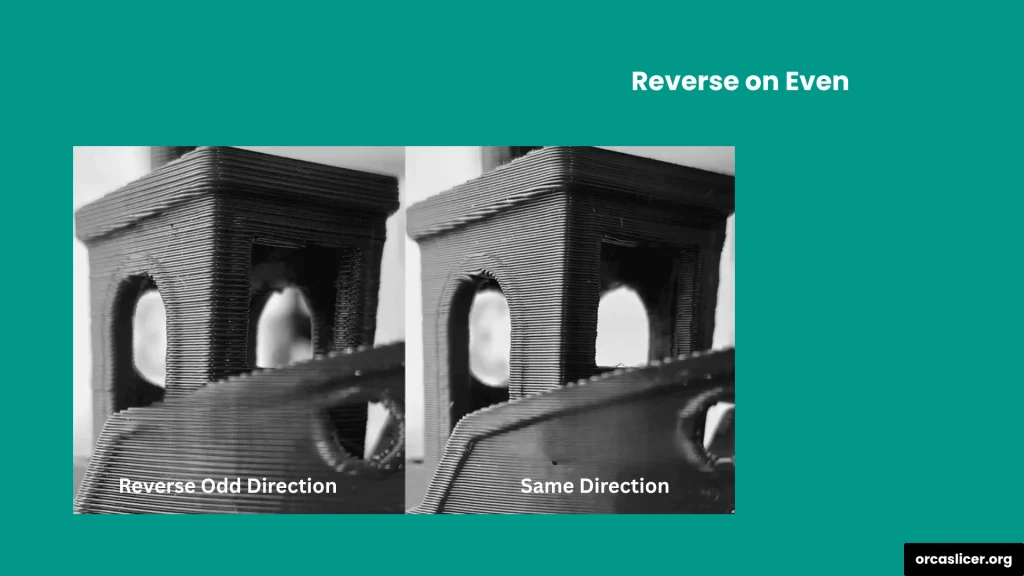
The Reverse on Even setting in Orca Slicer changes the printer’s movement direction every time it reaches an even-numbered layer. This means the printer moves in one direction for one layer and then reverses direction for the next layer.
Printing in alternating directions improves the surface quality and strengthens steep overhangs. The slightly squished filament from one layer supports the next, creating a stronger bond between layers. This alternating motion also helps spread out internal stresses, which reduces the risk of warping during printing.
This setting works especially well with materials such as ABS, ASA, TPU, and Silk PLA, as these filaments are more likely to warp or stretch. To get the best results, set the Reverse Threshold to 0, so all walls are printed in opposite directions instead of just the steeper ones.
Keep in mind that this feature may leave a visible texture on the overhang surface because of the alternating print direction.
Note: You can only use Reverse on Even if the slicer is automatically handling wall directions and if Spiral Vase Mode is turned off.
Reverse Internal Only
The Reverse Internal Only option allows your printer to reverse direction only for the inner walls, while keeping the outer walls printed in the same direction. This gives your print a smooth and clean outer surface without visible texture.
You still get the main advantages of alternating directions, such as stronger overhangs and less warping, since the internal walls are still printed in opposite directions on every other layer.
Reverse Threshold
The Reverse Threshold value tells Orca Slicer how often and where to change the printing direction. You can control whether the reversal applies to all overhangs or only certain areas, depending on how steep they are.
Here is how the options work:
- 0: No limits. All walls are printed in reverse on every even-numbered layer.
- Millimeters (mm): The slicer reverses direction once an overhang reaches the set distance.
- Percentage: The slicer reverses direction only when an overhang exceeds the set percentage of the wall width.
When you use a threshold, only the steeper overhangs above that limit will reverse direction, while the rest will print normally. However, this may cause uneven surface textures, so it is best to use this feature only when needed.
Recommendation: Experts recommend enabling Reverse on Even only for prints that truly benefit from it, as it is most effective for reducing warping and strengthening overhangs on specific materials.